Product tour
A tour of SayWrite
SayWrite lives in your menu bar and Dock: hold Fn and a small pill shows you're live, let go and your words appear at the cursor, and tap Space mid-dictation for AI Polish. Everything below runs on your Mac.
- In Slack · #launch, you say: “um can we push the demo to thursday the build isn't ready”. SayWrite types: “Can we push the demo to Thursday? The build isn't ready.”
- In Mail · Re: Q3 numbers, you say: “so basically the numbers look good but uh we're still waiting on legal so let's not announce until monday”. SayWrite types: “The numbers look good, but we're still waiting on legal. Let's hold the announcement until Monday.”
- In Notes · Chapter 4, you say: “the rain had stopped by the time she reached the station new paragraph nobody was waiting”. SayWrite types: “The rain had stopped by the time she reached the station. Nobody was waiting.”
Tour video
01 · The pill
One key, one small pill
Hold fn (or tap it to start and stop). A dark pill appears near the bottom of the screen with a red live dot, mint level bars and a timer. Let go and the text is typed where your cursor is, about ≈0.2 s later on an M5 Pro. The pill then shows a small check and a preview; hover it to read the full text or copy it. Press Esc to cancel.
02 · AI Polish
Tap Space to Polish
Tap space while holding fn and the pill shows “✦ Polish”. When you let go, your ramble becomes clean writing, using Apple Intelligence or your own local model. Say “write a quick reply saying Thursday works” and Rewrite · do what I say composes it instead.
03 · Edit Last Dictation
Fix it after the fact
Open Edit Last Dictation from the Dock or menu bar to see the full text, edit it, or run Polish, Grammar, Concise, Bullets, Email or Friendlier. Replace swaps the new version in exactly where the original went, but only if SayWrite can confirm it's still there; otherwise it goes to the clipboard.
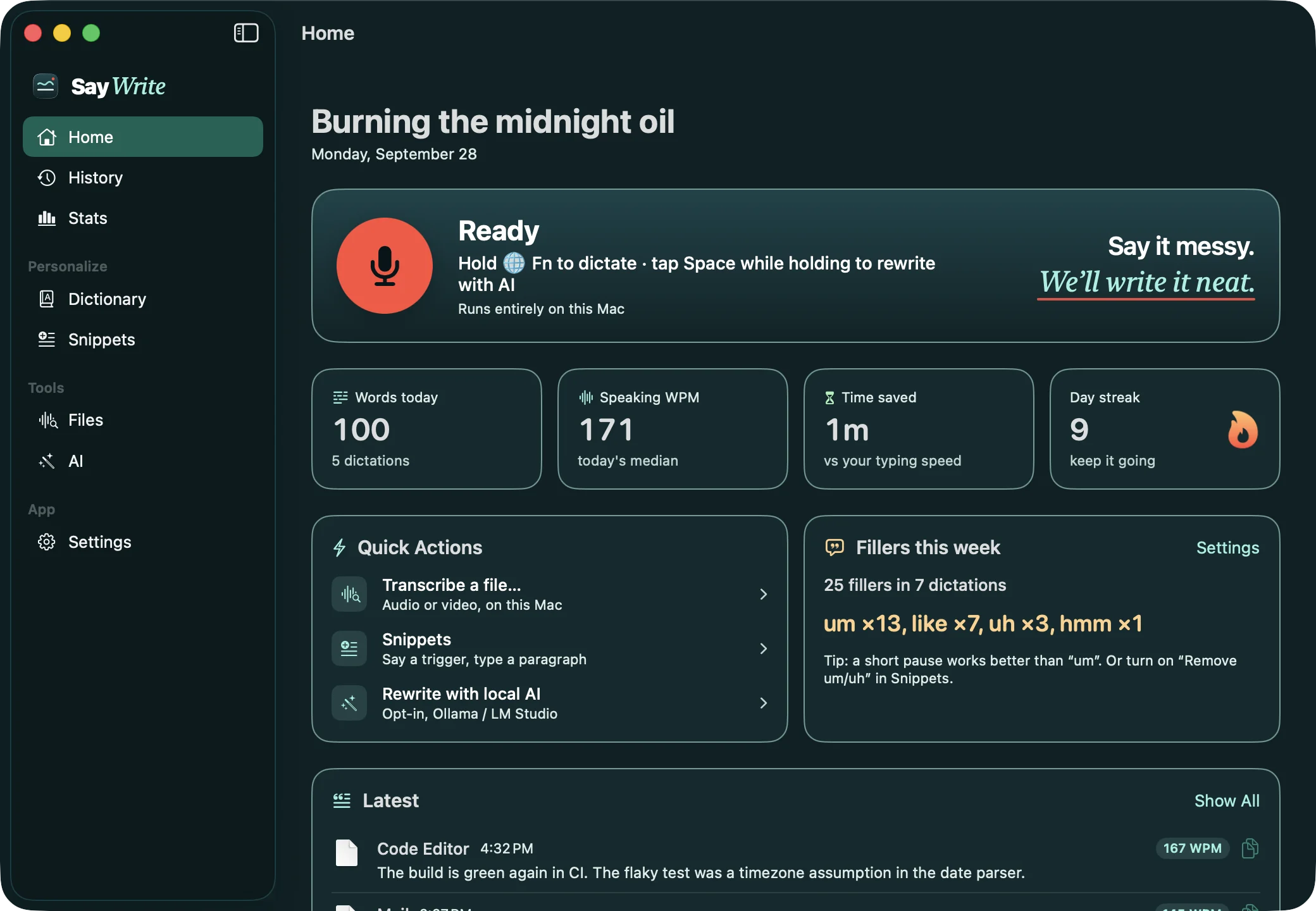
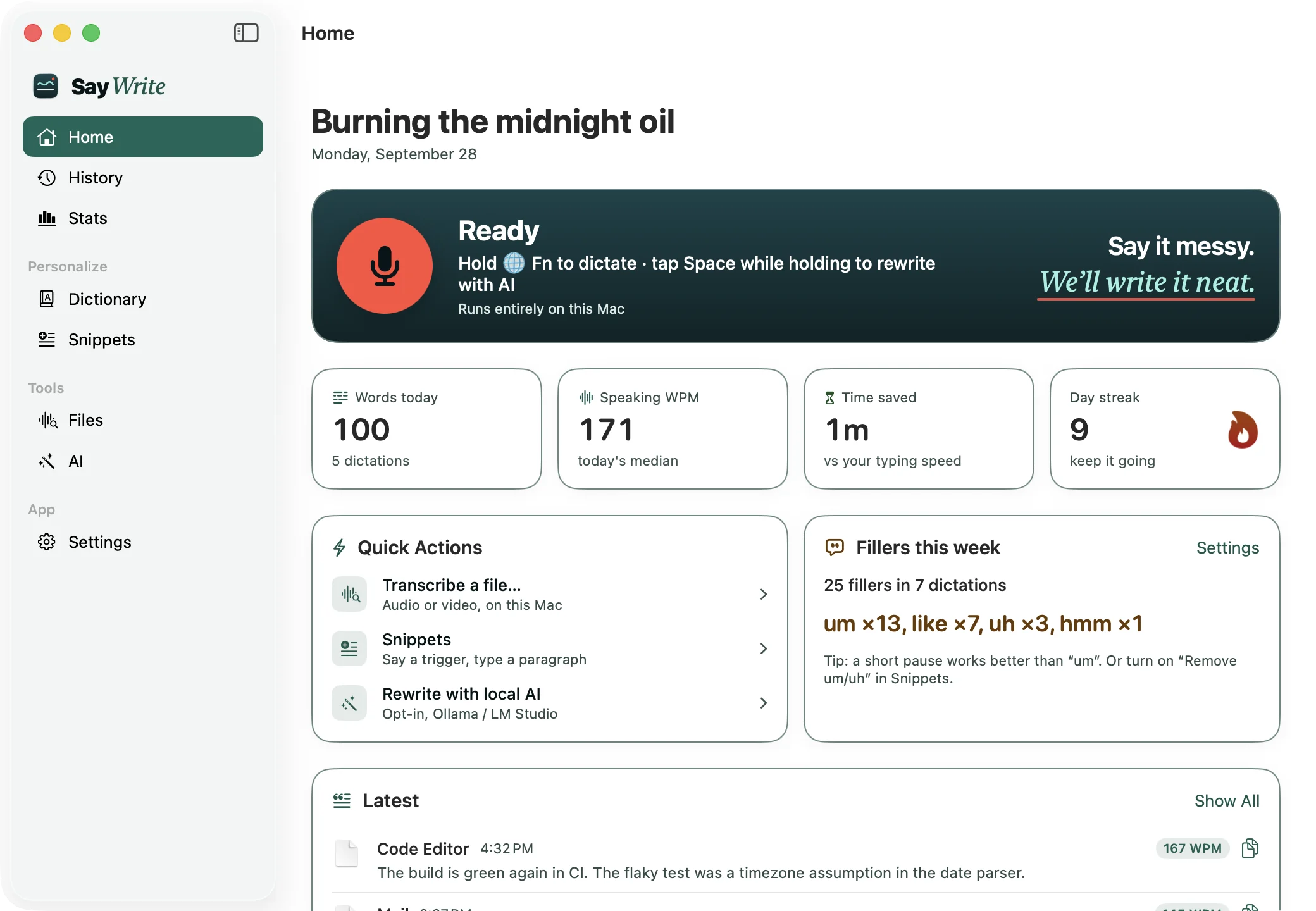
04 · Home
Everything at a glance
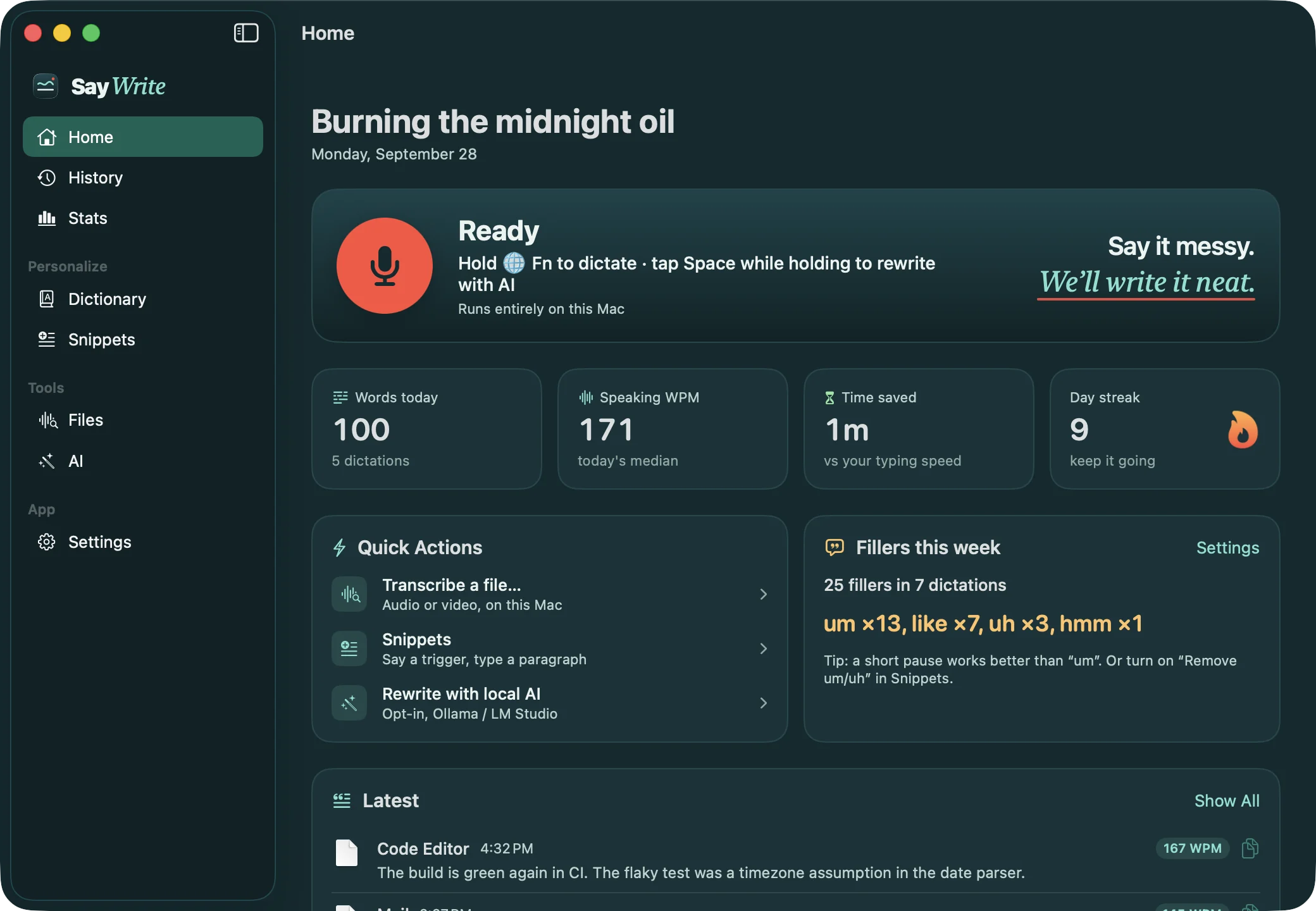
The main window opens on Home: whether SayWrite is ready, today's words, your speaking speed, time saved versus typing, your streak, this week's filler words and your latest dictations. History, Stats, the personal dictionary, Snippets, Files, AI and Settings sit in the sidebar (⌘1 to ⌘8).
05 · History
Every dictation, searchable, on your Mac
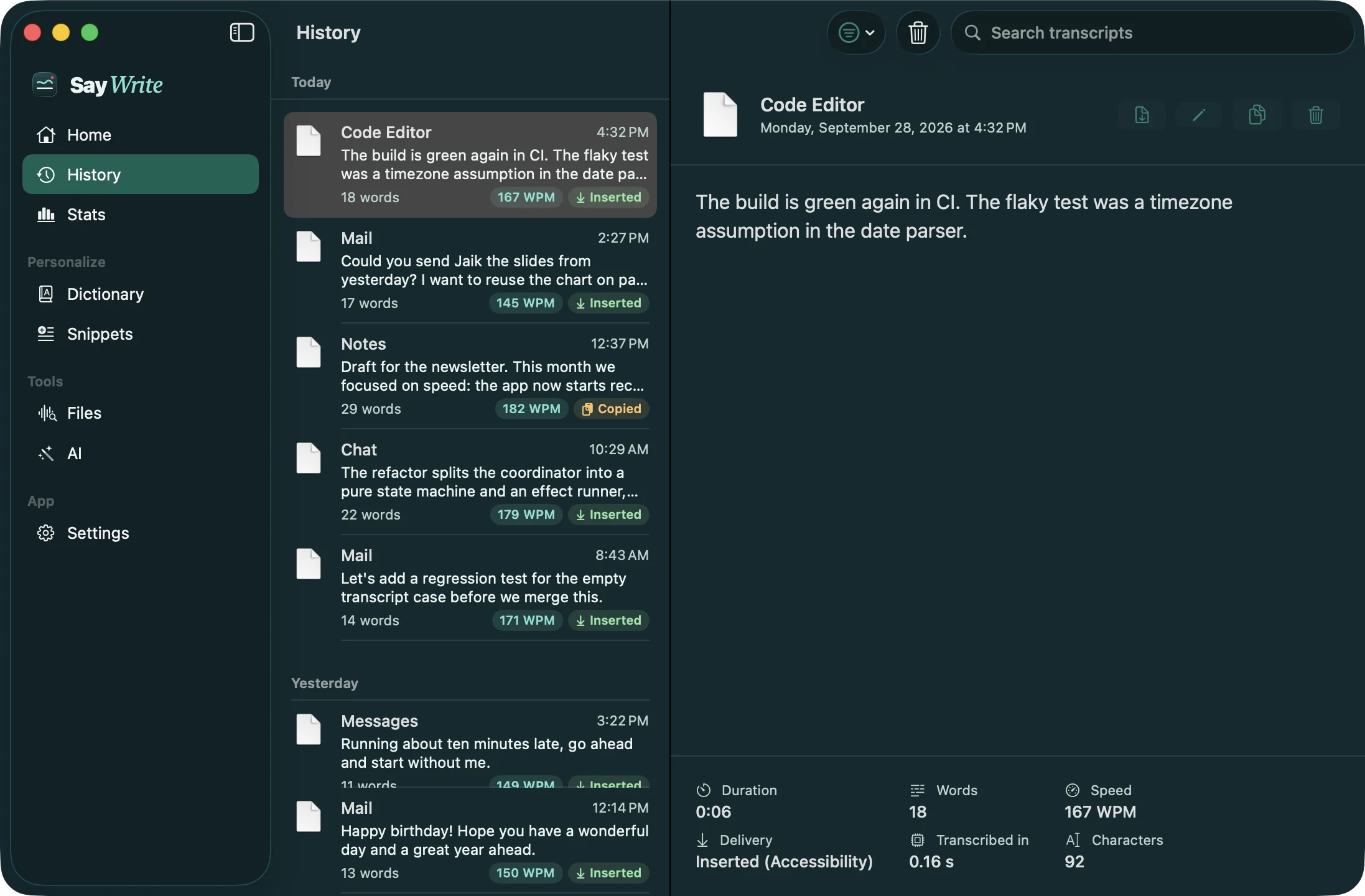
Search past dictations, filter by app, copy, paste again or edit and replace. You choose how long History is kept, and password managers are never recorded. It never leaves your Mac.
06 · Stats
How fast do you really talk?
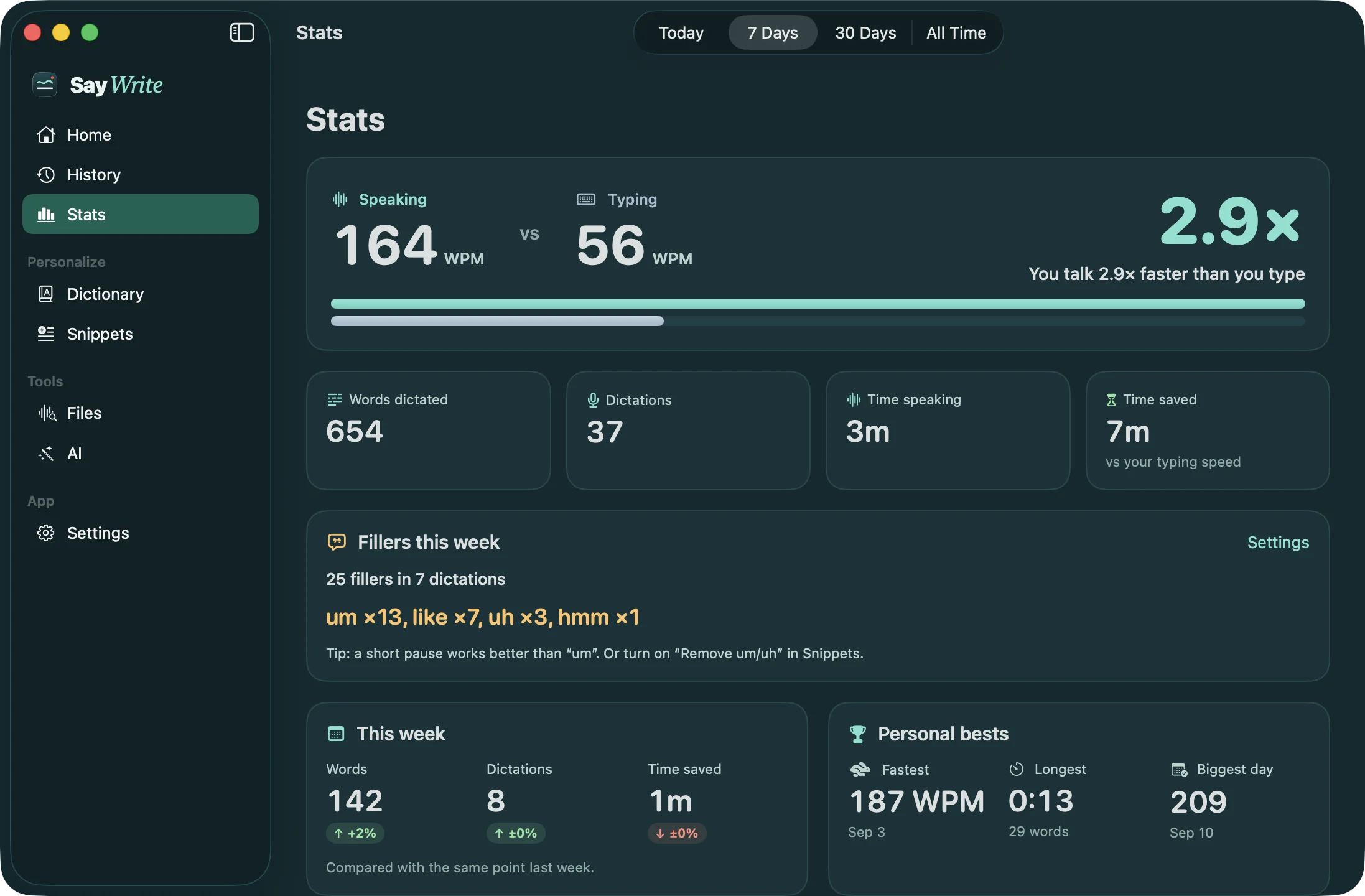
Stats compares your speaking and typing speed in words per minute, with streaks, a heatmap, personal bests, a weekly recap and a filler-word card. Typing speed is opt-in and records timing only, never keys. What the research says about speaking vs typing.
07 · AI settings
Pick your engine
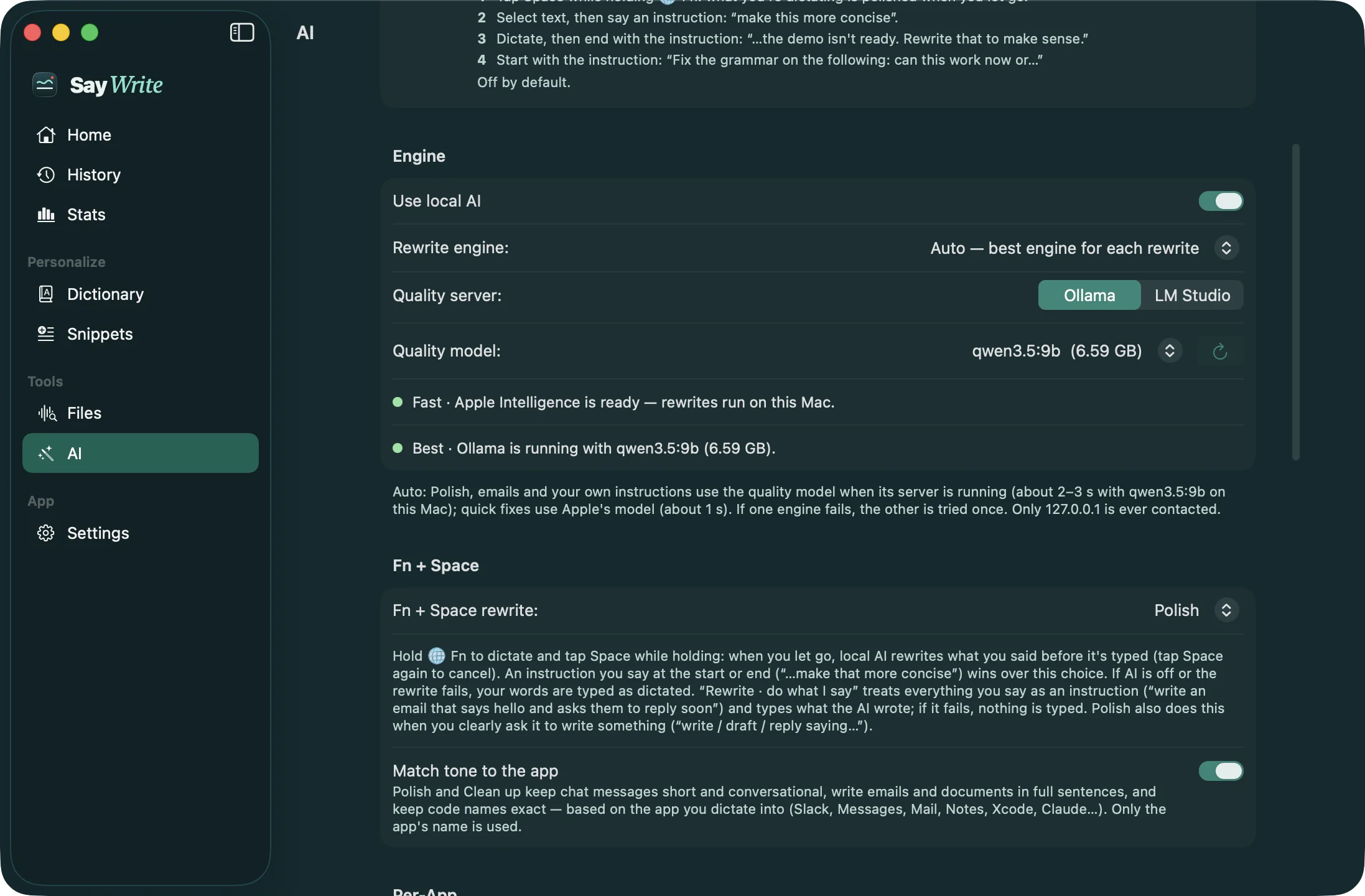
Choose Auto, Fast or Best, pick Ollama or LM Studio and a model, and test it in the Try It box, which shows the engine and the time it took. Match tone to the app and per-app auto-polish live here too.
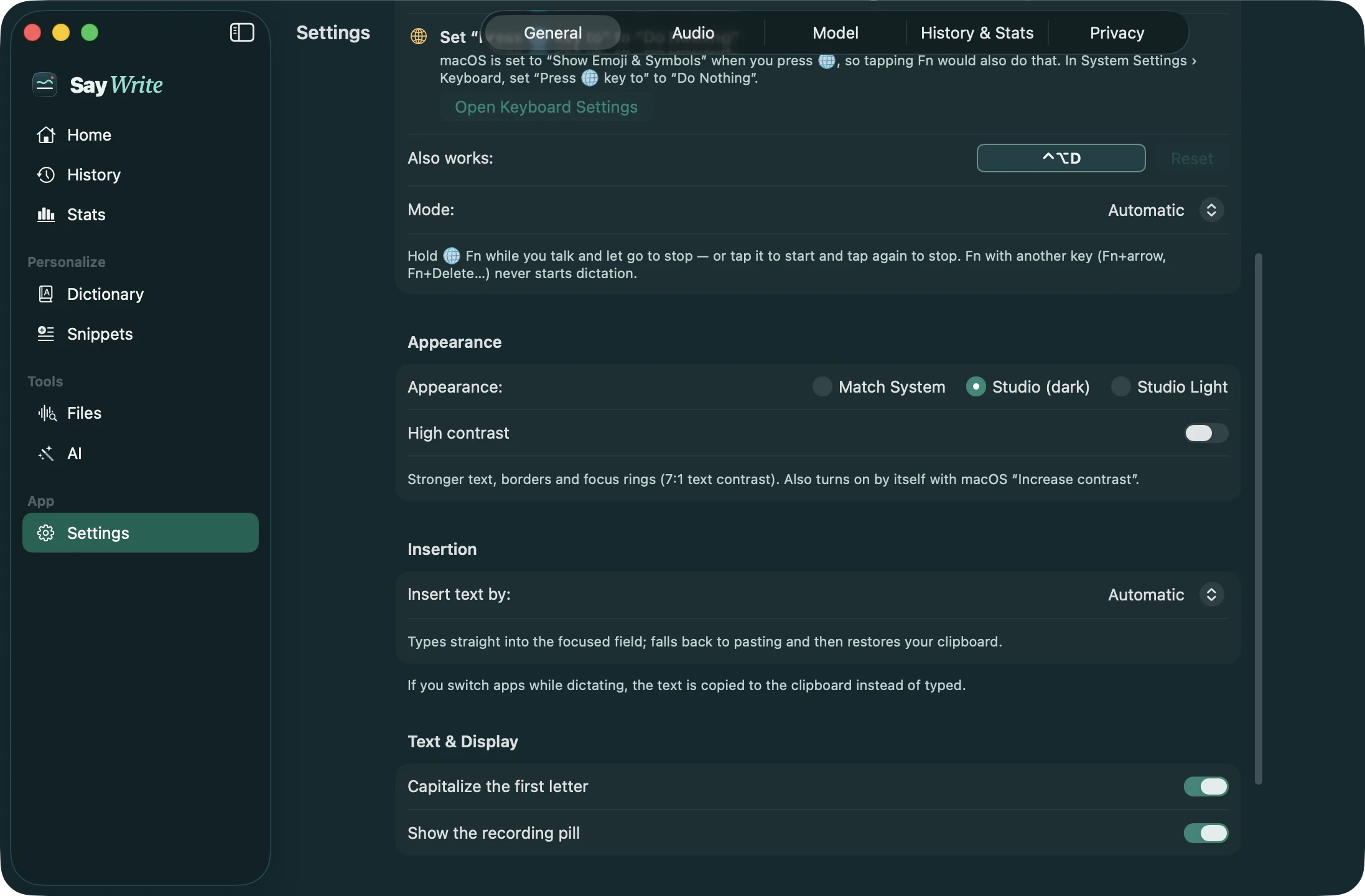
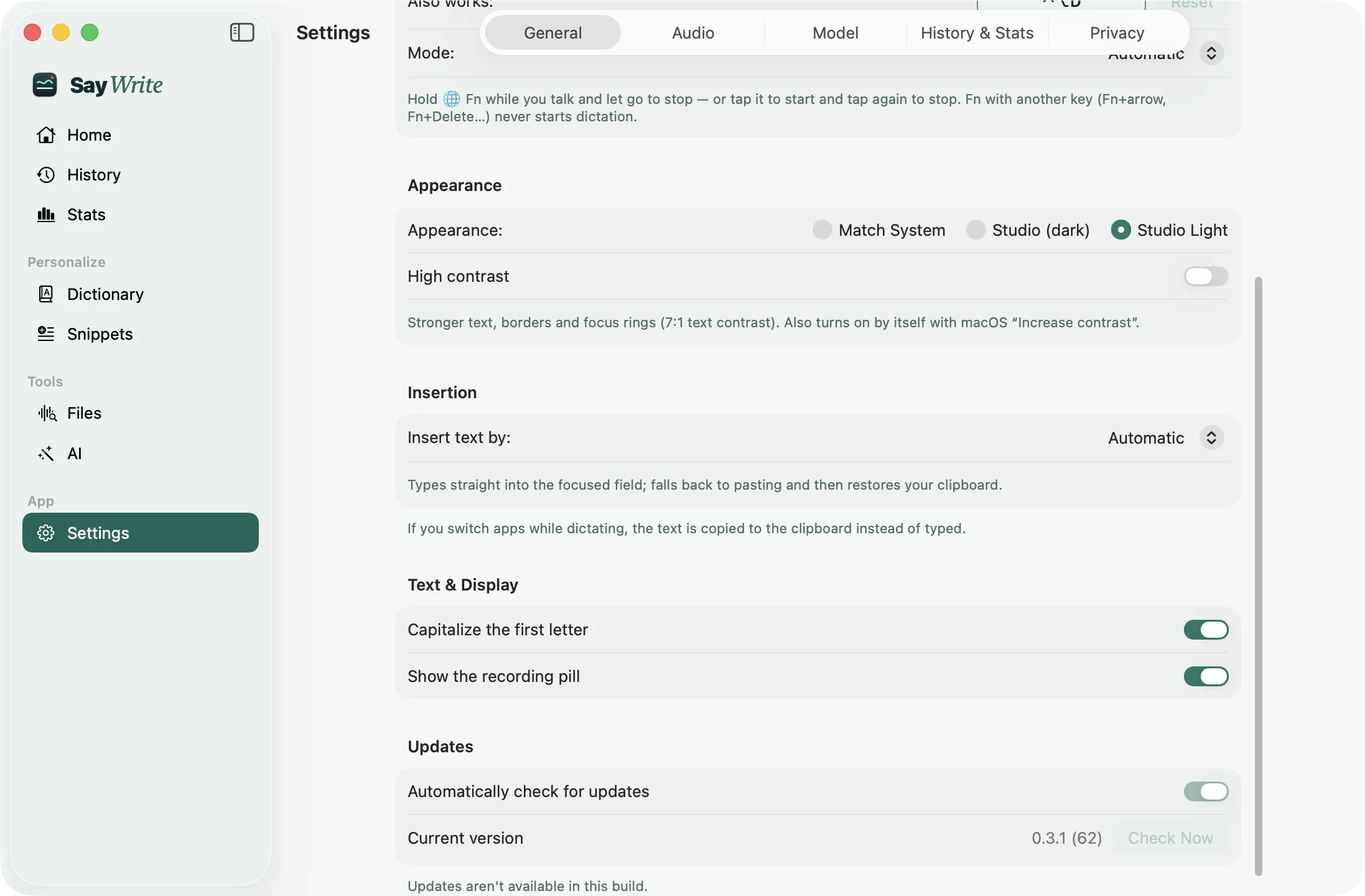
08 · Appearance
Studio, Studio Light and High Contrast
Match System, Studio (dark) or Studio Light, plus High Contrast, which also turns on automatically with macOS's Increase Contrast. Every color pair is tested against WCAG 2.2 AA, and body text in High Contrast meets AAA.
09 · Files
Transcribe recordings, too
Drop in an audio or video file (MP3, M4A, WAV, MP4, MOV and more) for timestamped text you can copy or export as .txt, .md or .srt. A 26-second clip takes < 1 s on an M5 Pro. How to transcribe audio offline on a Mac.
1
00:00:00,000 --> 00:00:04,120
The quarterly report is due next Friday, so let's finish the summary before the weekend.

2
00:00:04,120 --> 00:00:09,480
Sarah mentioned that the Chicago office increased sales by 18% compared with last year.
Keep reading
Say it messy. We'll write it neat.
Hold Fn, talk, and let SayWrite type it. Everything stays on your Mac.
Free during early access · macOS 15+ · Apple silicon